

NetSendo v1.6.3: Healthy Plugins, Healthy Automation
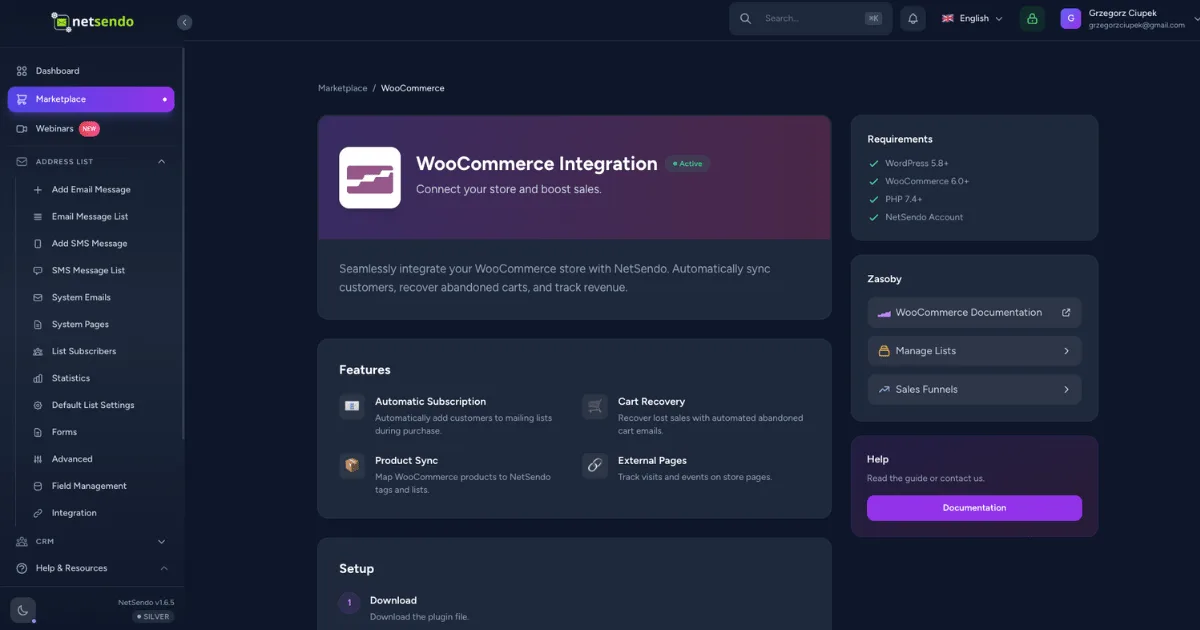
Have you ever had a customer sign up on your WooCommerce store, only to realize days later they never received your welcome email sequence? The culprit is often a silent failure in the connection between your store and your marketing platform, usually caused by an outdated plugin.
Data synchronization is the backbone of marketing automation. When it fails, you lose opportunities and revenue. That's why we're excited to announce NetSendo v1.6.3, an update focused entirely on ensuring the health and reliability of your integrations.
🚀 What's New: The Plugin Heartbeat System
Think of the new system as a health monitor for your integrations. At its core is a "heartbeat" mechanism. Your WordPress or WooCommerce plugin now sends a small signal to your NetSendo instance every 24 hours. This signal says, "I'm here, I'm active, and this is my version."
This allows NetSendo to give you immediate, actionable insights right from your dashboard.
Version Badge
Instantly see the current version of the plugin running on your connected store.
Update Available
An amber badge appears when we release a new plugin version, prompting you to update for the latest features and security patches.
Stale Connection
A red warning badge appears if NetSendo hasn't received a heartbeat from your plugin in over 7 days, indicating a potential connection issue.
Under the Hood: How It Works
For our technical users, this is powered by a new plugin_connections database table and two API endpoints:
POST /api/v1/plugin/heartbeat: Receives the daily check-in from your plugin, updating its status and version information.GET /api/v1/plugin/check-version: Allows the plugin to ask NetSendo if a newer version is available.
This simple but robust system gives you peace of mind, knowing your data funnels are operating as expected.
📈 Benefits & Use Cases
This isn't just about a version number on a screen. It's about maintaining the integrity of your entire marketing automation workflow.
E-commerce: Prevent Lost Revenue
Imagine a critical security patch is released for the WooCommerce plugin. Before, you might not know an update is needed. Now, the "Update Available" badge appears in NetSendo. You update the plugin, securing your customer data and ensuring your abandoned cart emails continue to fire, protecting your revenue.
Agency: Proactive Client Management
If you manage multiple client websites, this system is a game-changer. From a single NetSendo dashboard, you can see the connection health of all your clients' stores. When you see a "Stale Connection" warning, you can proactively reach out to your client to resolve the issue (e.g., they deactivated the plugin) before it impacts their campaigns, demonstrating your value as a partner.
🛠️ Step-by-Step Guide: Checking Your Plugin Health
Getting started with the new system is straightforward. Here’s how to ensure your integrations are being monitored:
-
Update NetSendo
First, ensure your NetSendo instance is running v1.6.3 or later. You can update easily with Docker:
docker compose pull && docker compose up -d -
Update Your Plugin
Download the latest version of the NetSendo WordPress/WooCommerce plugin. We've included a new
UPDATE_GUIDE.mdin the ZIP file to walk you through the process. -
Verify the Connection
In your NetSendo dashboard, navigate to Settings → Integrations. Find your connected WooCommerce or WordPress site.
-
Check the Badge
You will now see a status badge next to your store name. A green or gray badge with the version number means everything is healthy. If it's amber or red, you have an action to take!
ℹ️ Note: After updating your plugin, it may take up to 24 hours for the first heartbeat to be sent and the status to appear in NetSendo.
🎯 Expert Tips
Before updating the plugin on your live e-commerce site, always test it on a staging environment first. This ensures compatibility with your specific WordPress version, theme, and other plugins.
A "Stale Connection" warning means no data has synced for a week. Common causes include a user deactivating the plugin, server firewall changes, or a WordPress security plugin blocking outgoing requests. Start your investigation there.
When you see an "Update Available" notification, take a moment to read the plugin's changelog on GitHub. This helps you understand what new features, fixes, or potential breaking changes are included in the new version.
Conclusion: Build Resilient Automations
With NetSendo v1.6.3, we're giving you the tools to build more resilient, reliable marketing automations. By closing the communication gap between our platform and your WordPress sites, you can trust that your data is always flowing, your lists are always current, and your campaigns are always reaching the right people at the right time.
Ready to Improve Your Integration Health?
Update to NetSendo v1.6.3 and get the latest plugins today.