

NetSendo v1.7.5: AI-Powered Marketing with MCP
How much time do you spend on repetitive marketing tasks? From cleaning subscriber lists to analyzing campaign performance, the manual effort can be a significant drain. What if you could simply tell your marketing platform what to do, using plain English, and have an AI carry out the task?
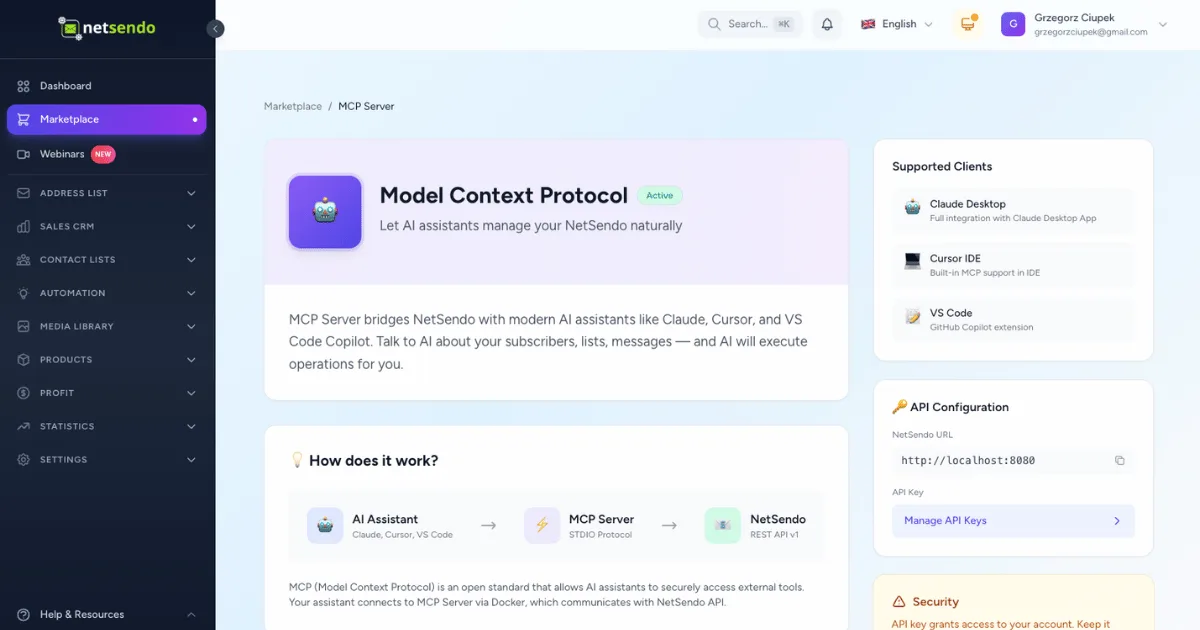
With NetSendo v1.7.5, this is now a reality. We're thrilled to introduce the Model Context Protocol (MCP), a groundbreaking integration that connects your self-hosted NetSendo instance directly to powerful AI assistants like Claude, Cursor, and more. This update transforms NetSendo into an intelligent, conversational marketing automation engine.
@netsendo/mcp-client) and a new UI status indicator to monitor the connection.
🚀 What's New: The Model Context Protocol (MCP)
Think of MCP as a universal translator. It creates a secure bridge between Large Language Models (LLMs) and your NetSendo instance, allowing them to understand and interact with your data. This isn't just another API; it's a purpose-built protocol for intelligent, context-aware automation.
AI Assistant Integration
Connect NetSendo to tools like Claude or the Cursor IDE to manage tasks with natural language commands.
Remote CLI Client
Manage any NetSendo instance from your terminal with the new @netsendo/mcp-client npm package.
Live Status Indicator
A new icon in the top navigation bar shows the real-time status of your MCP connection, ensuring you're always aware.
Inside the MCP Server
The new, built-in MCP server comes packed with capabilities that give AI assistants fine-grained control over your instance:
- 16 Core Tools: Everything from creating subscribers and managing tags to sending email and SMS campaigns.
- 2 Information Resources: Instantly fetch instance capabilities (
netsendo://info) or a dashboard overview (netsendo://stats). - 3 Pre-built Prompts: Kickstart complex workflows like analyzing subscribers, sending a newsletter, or cleaning a list.
ℹ️ Note: The MCP server runs as a dedicated service within the NetSendo Docker environment, ensuring seamless and secure operation.
💡 Benefits & Real-World Use Cases
MCP isn't just a technical marvel; it's a practical tool designed to save you time and unlock new possibilities. Here’s how you can use it:
SaaS Onboarding & Churn Prevention
Use your AI assistant to perform complex analysis and actions without writing a single line of code. For example, you could ask:
"Find all users who signed up in the last 30 days but have a low engagement score. Tag them as 'needs-attention' and send them the 'Re-engagement' email."
E-commerce Flash Sales
Quickly respond to market trends or inventory changes. A simple prompt can launch a targeted campaign in seconds:
"Send an SMS to all subscribers tagged with 'VIP-customer' about our 24-hour flash sale on shoes."
Agency & Developer Operations
The new remote CLI client makes managing multiple instances a breeze. Use a single command to configure and connect to any remote instance for scripting, maintenance, or quick checks.
npx @netsendo/mcp-client --url=https://client-a.com --api-key=... "check status"🛠️ Step-by-Step Guide: Connecting Your AI Assistant
Getting started with MCP is straightforward. Here’s how to connect NetSendo to an AI tool like Cursor or the Claude desktop app:
-
Update & Enable MCP
Ensure you're running NetSendo v1.7.5 or later. The
mcpservice is enabled by default in thedocker-compose.ymlfile. Simply rundocker compose up -dto start it. -
Generate an API Key
In your NetSendo dashboard, navigate to Settings → API Keys and generate a new key. For security, only grant it the permissions your AI will need.
-
Configure Your AI Assistant
In your AI tool's settings (e.g., Cursor's
@aiserverconfig), add the NetSendo MCP server. You'll need your instance URL and the API key you just generated. Our docs provide ready-to-use configurations. -
Test the Connection
Back in NetSendo, the MCP Status Indicator in the navigation bar should now show "Connected". You can click it for more details or to run a manual test. You can now start giving it commands!
⚠️ Important: The MCP server is accessible on port 7125 within the Docker network. Ensure your external proxy or firewall configuration allows access if you intend to connect from outside your local machine.
🎯 Expert Tips for Power Users
Always create a dedicated API key for each AI assistant or script. Grant it only the permissions necessary for its tasks to minimize security risks.
Leverage the npx @netsendo/mcp-client command in your deployment scripts or cron jobs. It's perfect for automating tasks like adding a new team member to your internal newsletter.
While we provide pre-built prompts, the real power comes from chaining the 16 core tools in your AI assistant to create complex, custom workflows tailored to your exact business needs.
Ready to Automate with AI?
The Model Context Protocol in NetSendo v1.7.5 is more than an update; it's a new way to interact with your marketing platform. Gain speed, efficiency, and powerful new capabilities by letting AI handle the heavy lifting.