

NetSendo v1.6.9: The New Enterprise Media Library
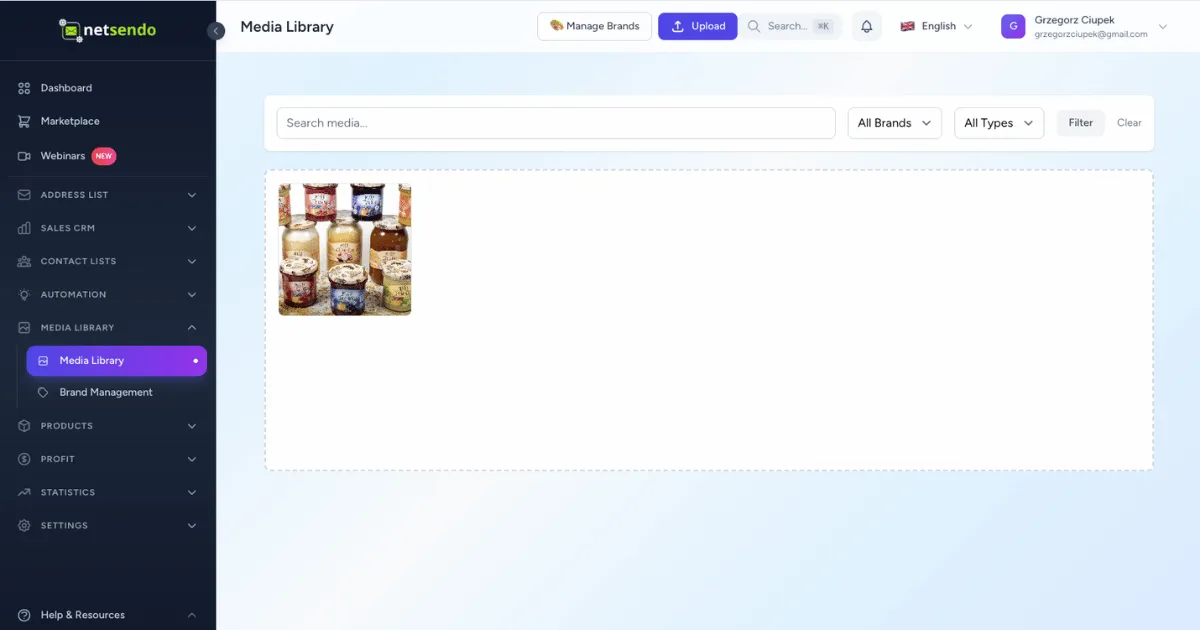
Are you tired of hunting for the right logo or campaign image across endless folders? Managing brand assets, especially across multiple clients or product lines, can quickly become a chaotic mess that slows down your marketing workflow. Consistency suffers, and valuable time is lost.
That's why we're thrilled to introduce the flagship feature of NetSendo v1.6.9: the Enterprise Media Library. This is more than just a folder for your uploads; it's a central command center for all your brand assets, designed to make you faster, more consistent, and more efficient.
🚀 What's New in NetSendo v1.6.9
This release is focused on providing enterprise-grade tools to manage your marketing assets at scale, right within the NetSendo platform you already control. No need for third-party digital asset management (DAM) systems—it's all built-in.
Central Media Hub
A dedicated /media page to upload, filter, search, and manage all your marketing images and documents.
Brand Management
Create distinct brands, each with its own logo and automatically extracted color palettes for perfect consistency.
WYSIWYG Integration
Browse and insert images or logos directly from the Media Library without ever leaving the email editor.
Critical Docker Fix
We've resolved the 404 image error for Docker-based production environments, ensuring reliable image delivery.
The Enterprise Media Library: Your Central Asset Hub
The Media Library is the heart of this update. It provides a single source of truth for all your visual content. You can now upload assets via drag-and-drop, organize them in folders, and filter by brand or media type (Image, Logo, Icon, Document).
One of the most powerful features is automatic color extraction. When you upload an image, NetSendo uses a k-means clustering algorithm to analyze it and automatically generate a palette of its 8 most dominant colors. This is perfect for styling email templates to perfectly match your campaign visuals.
Seamless WYSIWYG Editor Integration
We've bridged the gap between your assets and your content creation. The email editor's image insertion tool now includes a "Browse media library" button. This opens a modal where you can visually select any image from your library. There's even a dedicated button to "Insert logo from library," which intelligently filters to show only assets you've marked as a logo.
ℹ️ Note: We also fixed a long-standing issue where image style options (like width, alignment, and border-radius) were not saved correctly in the WYSIWYG editor. Your image formatting will now be preserved perfectly.
Critical Fix for Docker Installations
For our users who self-host with Docker, we've solved a critical issue causing 404 errors for images uploaded in the Template Builder. Due to how Docker handles volumes, symlinks between storage and public directories were not working. We have re-engineered the NGINX configuration to properly serve these files, ensuring your images always load.
# Example of the new NGINX configuration
location /storage {
    alias /var/www/html/storage/app/public;
    try_files $uri $uri/ /index.php?$query_string;
}
💼 Benefits & Use Cases
Here’s how you can leverage the new Media Library in your day-to-day operations:
Marketing Agencies
Create a "Brand" for each of your clients. Upload their logos, brand guidelines, and campaign images. This keeps all client assets completely separate, eliminating embarrassing mix-ups and ensuring brand integrity across all campaigns.
E-commerce Businesses
Manage assets for different product lines or seasonal promotions as separate brands. Use the automatic color extraction from your hero product images to quickly style your promotional emails for a cohesive and professional look.
SaaS Companies
Keep all your UI screenshots, feature graphics, and company logos in one organized place. When writing update emails or onboarding sequences, your team can pull the latest approved graphics directly from the library, ensuring consistency.
🛠️ Step-by-Step Guide: Using the Media Library
Get started with the new Media Library in just a few clicks:
-
Create a Brand
Navigate to "Media Library" → "Brands" from the sidebar. Click "New Brand," give it a name, and upload a primary logo. NetSendo will automatically generate a color palette from the logo.
-
Upload Your Assets
Go to the "Media" page. You can drag-and-drop files directly or click to upload. During upload, you can assign them to a specific brand or folder for immediate organization.
-
View Asset Details
Click on any uploaded image to see its detailed view. Here you'll find metadata like dimensions and file size, the extracted color palette, and options to edit its Alt Text or change its type.
-
Insert Image in Email Editor
Open any email template, click to add an image, and select "Browse media library." Your entire library is now at your fingertips, ready to be inserted into your campaign.
🎯 Expert Tips
Before you upload hundreds of files, plan a folder structure. We recommend organizing by campaign (e.g., "Q4 Holiday Sale"), asset type ("Email Headers"), or date ("2026-Q1") to keep things tidy.
While NetSendo is powerful, you should always optimize and compress images before uploading them. This ensures faster email load times for your subscribers and reduces your server's storage footprint.
Use the detailed media view to add descriptive Alt Text to every image. This is crucial for accessibility and ensures your message gets across even if images are blocked by the email client.
If you're updating an existing Docker installation, you must manually update your docker-compose.yml and NGINX config file to apply the 404 image fix. Please see our Docker installation guide for details.
Ready to Supercharge Your Asset Management?
The Enterprise Media Library is a massive step forward in making NetSendo a true all-in-one marketing platform. Update your instance to v1.6.9 today to take control of your brand assets.