

NetSendo v1.7.4: Global Search & Editor Upgrades
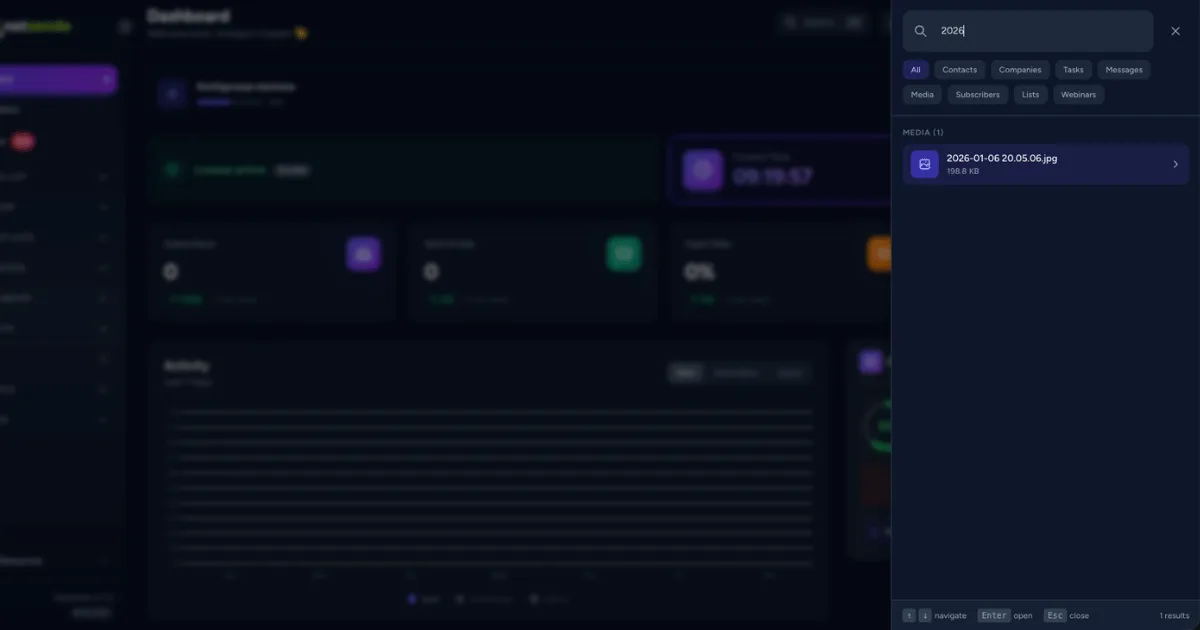
Stop Searching, Start Finding: Introducing Global Search in NetSendo v1.7.4
How much time do you spend clicking through menus to find that one specific contact, email campaign, or task? In a self-hosted platform where you own all your data, efficient access is paramount. We believe your workflow should be seamless, fast, and intuitive. That’s why we’re thrilled to introduce a game-changing feature in our latest release.
NetSendo v1.7.4 is here, and it’s centered around a massive productivity boost: a universal Global Search system. Inspired by modern command palettes, it lets you find anything, anywhere, with a simple keyboard shortcut. This release also brings powerful upgrades to our editors and streamlines CRM task management.
🚀 What's New in v1.7.4
Your New Superpower: Global Search (Cmd+K)
Think of it as your private Spotlight or Raycast, but built specifically for your marketing and sales data. Accessible from anywhere in the app via a top-bar icon or the Cmd+K (macOS) / Ctrl+K (Windows/Linux) shortcut, our new Global Search opens a sleek command palette that puts everything at your fingertips.
You can instantly search across 8 key areas of the platform:
- Contacts & Companies
- CRM Tasks
- Email & SMS Messages
- Subscriber Lists & Individual Subscribers
- Media Library Files
- Webinars
ℹ️ Note: Smart features like result filtering, search history, and full keyboard navigation are built-in to make your workflow faster than ever.
Instant Access
Use Cmd+K to open a powerful search palette from anywhere in the app.
Multi-Resource Search
Find contacts, messages, tasks, and more from a single input.
Keyboard Navigation
Navigate and select results without ever leaving your keyboard.
✍️ A Unified & Powerful Editing Experience
We’ve massively upgraded our content editors to give you more power and a consistent experience whether you’re writing an email, a signature, or an insert.
Advanced Signature & Insert Editor
The signature editor now inherits the full power of our advanced email editor. This includes a comprehensive toolbar with new formatting options like headings, highlights, blockquotes, and an emoji picker. Most importantly, it now features an advanced image manager. You can now directly upload images or browse your entire Media Library, with full styling controls for text wrapping, margins, and borders.
Full Table Support in Emails
You asked, and we delivered! The main email message editor (AdvancedEditor.vue) now supports creating and editing tables. A new toolbar button lets you insert a table, and a contextual menu appears when you select it, allowing you to add/remove rows and columns, merge cells, and more. Displaying data in your emails has never been easier.
✅ Streamlined CRM Task Management
Creating and managing tasks is now faster and more intuitive. We've implemented a new comprehensive modal for creating and editing CRM tasks. You can quickly add a task directly from the main CRM Tasks dashboard or from a specific Contact's profile page, ensuring your to-do list is always just a click away.
💼 Benefits & Use Cases
Marketing Agencies
Managing multiple clients? Use Global Search (Cmd+K) to jump directly to a specific client's contact list or an ongoing campaign message without navigating through menus. Time saved is money earned.
SaaS Businesses
A user reports an issue. Use Global Search to instantly pull up their contact record, associated company, and any recent support tasks. Then, use the new Task Modal to create a follow-up for your support team, all in seconds.
E-commerce Stores
Need to update your holiday promotion signature? Use the new Signature Editor to add a professionally formatted banner with a linked image from your Media Library, complete with text wrapping around your call-to-action.
🛠️ Step-by-Step Guide: Mastering Global Search
Get up to speed with the new Global Search in just a few steps:
-
Access Search
From anywhere in your NetSendo dashboard, press
Cmd+K(orCtrl+Kon Windows/Linux). Alternatively, click the new search icon in the top navigation bar.[Image: Screenshot of the top navigation bar with the search icon highlighted.]
-
Perform a Search
Start typing your query—a contact's name, a task's title, or a message subject. Results will appear and update instantly, grouped by category (e.g., Contacts, Messages).
[Image: Screenshot of the Global Search panel open with "John Doe" typed and results showing.]
-
Filter Results
To narrow your view, click on the filter chips at the top of the search results, such as "Contacts" or "Tasks". The list will immediately update to show only that resource type.
[Image: Screenshot of the search panel with the "Tasks" filter chip activated.]
-
Navigate with Keyboard
Use the up (↑) and down (↓) arrow keys to highlight different results. Once you've found what you're looking for, press Enter to navigate directly to it. No mouse required!
⚠️ Important: To get these new features, you must update your NetSendo instance to version 1.7.4 or later. Follow our update guide for instructions.
🎯 Expert Tips
Train yourself to use Cmd+K instead of clicking through menus. This single habit will dramatically increase your efficiency and make you feel like a power user.
Global Search remembers your last 5 queries. If you frequently access the same contact or list, you can open the search panel and click the query from your history for one-click access.
With the new image manager in the signature editor, there's never been a better time to organize your Media Library. Upload logos and common graphics once, then reuse them everywhere for perfect brand consistency.
When creating a task with the new modal, be descriptive. The title and description of your tasks are now fully searchable, turning your to-do list into a powerful, accessible knowledge base.
Ready to Supercharge Your Workflow?
Version 1.7.4 is all about giving you back time and making the platform more powerful and intuitive. Update your self-hosted instance today to experience the speed of Global Search and the flexibility of our new editor.
If you love what we're building, give us a star on GitHub!