NetSendo v1.6.2: Advanced Tracked Links & API Upgrades
🚀 What's New in v1.6.2
This release is all about giving you more granular control over your campaigns and data. We've focused on powerful new ways to automate actions based on subscriber engagement, while also shipping some major quality-of-life improvements to speed up your daily workflow.
Advanced Tracked Links
The star of this release. Go beyond simple click tracking and turn every link into a potential automation trigger.
Accurate API Data Passthrough
Ensure you're tracking the real user's data—not your server's—when adding subscribers via the API.
Streamlined CRM Workflows
We've added new sorting, search capabilities, and quick actions to make managing your lists faster than ever.
The Game-Changer: Advanced Tracked Links
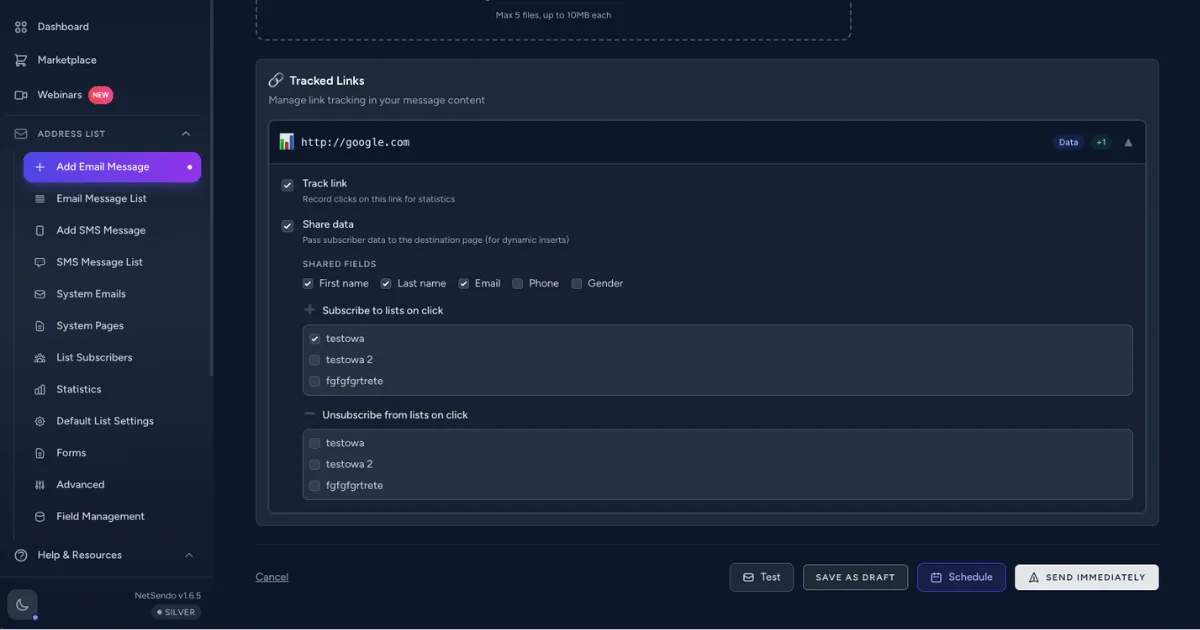
Imagine your email links aren't just pathways to a webpage, but intelligent triggers. With our new Tracked Links feature, they are. You now have per-link control to:
- Enable/Disable Tracking: Choose which links should be tracked, giving you cleaner analytics.
- Pass Subscriber Data: Securely send subscriber data (like email or name) to the destination URL for a personalized landing page experience.
- Trigger List Actions: Automatically subscribe a user to a new list (e.g., "Interest: Product X") or unsubscribe them from another when they click a specific link. This is automation gold.
ℹ️ Note: NetSendo automatically detects all <a href...> links in your email content, which then appear in the new "Tracked Links" section of the campaign creator.
Richer Data with API Passthrough
If you use an intermediary service like n8n, Zapier, or your own backend to add subscribers, you may have noticed that NetSendo was recording the IP address of your server, not the end-user. We've fixed that.
You can now optionally pass the user's real IP address, user agent, and device information directly through the API. This ensures your subscriber analytics and geolocation data are always accurate.
{
  "email": "new.subscriber@example.com",
  "list_id": 1,
  "ip_address": "203.0.113.55",
  "user_agent": "Mozilla/5.0 (iPhone; CPU iPhone OS 16_0 like Mac OS X) AppleWebKit/605.1.15 (KHTML, like Gecko) Version/16.0 Mobile/15E148 Safari/604.1",
  "device": "mobile"
}
Workflow & CRM Enhancements
We've also shipped several updates to make managing your lists a breeze. You can now see List IDs directly in the table view, search by an exact List ID, and sort your lists by ID or subscriber count. Plus, new "Quick Create" buttons let you start a new email or SMS campaign for a specific list with a single click.
💡 Benefits & Use Cases
Here’s how you can apply these new features to grow your business:
E-commerce: Hyper-Segmentation on Autopilot
In your next promotional email, create separate links for different product categories. Use the "Subscribe to List on Click" action for each:
- Link to "Men's Shoes" subscribes the user to your "Interest: Footwear" list.
- Link to "Women's Jackets" subscribes them to the "Interest: Outerwear" list.
You can now send highly targeted follow-up campaigns without ever asking your subscribers to fill out a preferences form.
SaaS: Personalized Onboarding & Feedback
When a new user signs up via your app, use the API passthrough to send their device data to NetSendo. Then, in your welcome email, use a Tracked Link to pass their unique user ID to your docs.
Example Link: https://docs.yourapp.com/getting-started?user_id={{subscriber_id}}. This allows you to create a personalized, logged-in experience on your documentation page. You can also use "click to subscribe" to let users opt-in to newsletters about specific product features.
📋 Step-by-Step Guide: Setting Up Your First Actionable Link
Let's configure a link that subscribes a user to a "VIP" list when clicked.
-
Create Your Email
In the NetSendo dashboard, navigate to the Email Creator and compose your message. Add a link like you normally would, for example: "Click here to get early access to new features."
-
Open the Tracked Links Section
Below the email editor, you'll see a new "Tracked Links" panel. Your link will automatically appear there.
[Image Description: A screenshot of the NetSendo email creator. An arrow points to the new 'Tracked Links' section, which lists the URL 'https://your-site.com/vip-access'.]
-
Configure the Click Action
Find your link in the list. In the "Subscribe to Lists" dropdown, select your "VIP" mailing list. You can also add multiple lists if needed.
-
Save and Send
That's it! Save your message. Now, any subscriber who clicks that specific link will be automatically added to the VIP list, enabling you to trigger a new welcome sequence or simply segment them for future offers.
🎯 Expert Tips
Use "Subscribe on Click" for topics users want to hear more about, and "Unsubscribe on Click" for topics they don't. This allows you to build a simple, effective preference center right inside your emails.
Use the "Share Data with URL" option to add subscriber details as URL parameters (e.g., ?email={{email}}&name={{first_name}}). Your website can then read these parameters to display a personalized greeting like "Welcome back, Sarah!".
For the ultimate profile, use the API passthrough to log a subscriber's initial device and location, then use Tracked Links over several campaigns to build a rich profile of their specific interests based on what they click.
⚠️ Important: Be mindful of privacy when passing subscriber data in URLs. Avoid sending highly sensitive information and ensure the receiving page handles the data securely over HTTPS.
Ready to Supercharge Your Automation?
These features are available now in NetSendo v1.6.2. Pull the latest Docker image to get started and take your marketing automation to the next level.