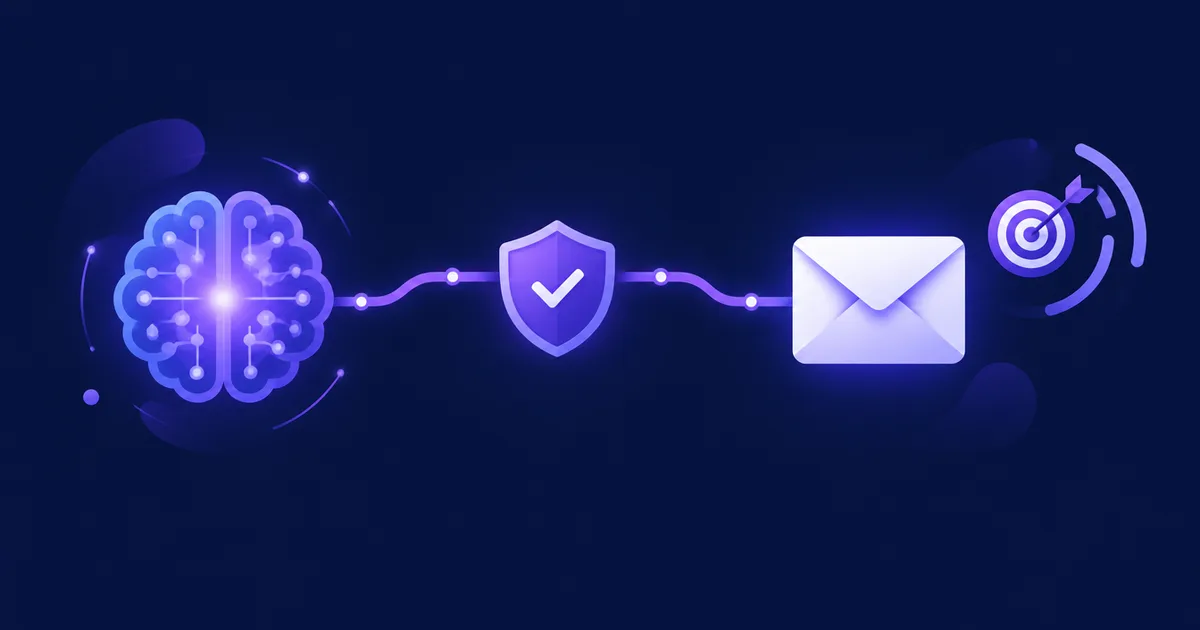

NetSendo v2.8.2: Smarter Brain Modes & Reliable AI Routing
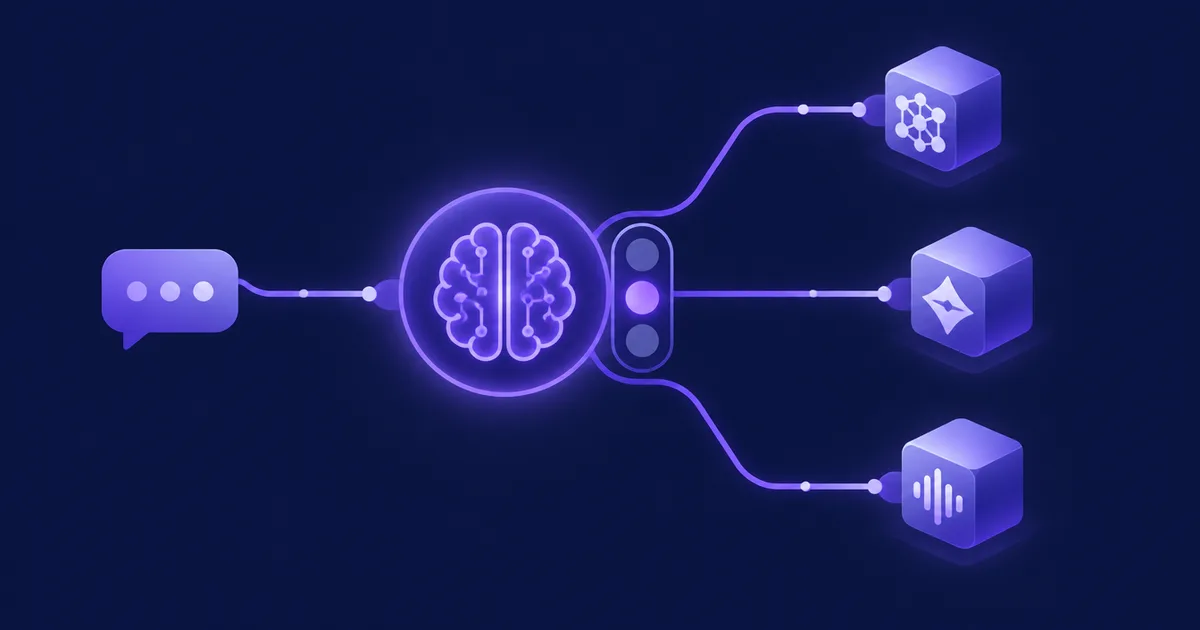
Your AI assistant is only useful if it does what you ask, works in the mode you set and uses the model you chose. Before this release, NetSendo Brain could miss on all three. You could switch Brain to Semi-automatic while every agent kept working autonomously. A question about returns could reach the CRM agent as the word keyword_match. Some background services also used whichever AI integration came first in the database.
NetSendo v2.8.2 fixes these problems. The mode you set is the mode the agents use, your chosen model handles every Brain task, and the Monitor shows what is really happening. You run it on your own server, so your data and your AI keys stay with you.
docker compose pull && docker compose up -d, then check Brain → Settings → Agent modes.
🚀 What's New in v2.8.2
One Global Mode
Manual, Semi-automatic or Autonomous now applies to every agent unless you set an exception for it.
Your Model, Everywhere
All Brain services use the model you chose, not the first integration in the database.
Chat Commands Work Again
Your requests go to the right agent, together with your own words.
GPT-5 & Gemini 2.5
Reasoning and thinking models now return complete answers.
A Global Brain Mode That Really Applies
The global mode used to act like a snapshot. When you saved the agent modes, NetSendo stored a mode for every agent and froze the global setting of that moment. If you changed the global mode later, the agents kept the old one. On one instance we reviewed, every agent was still autonomous while the chat header said semi-automatic.
Now, choosing a mode in Brain → Settings or with /mode in Telegram clears the per-agent modes. When you save agent modes, only the agents that differ from the global mode are stored. Think of the global mode as the default for the whole team and per-agent modes as written exceptions.
- The chat header, the Monitor and the dashboard widget show the mode the agents really use, or Mixed if they differ.
- An agent set to Advisory only gives advice, even when the global mode is semi-automatic. It no longer creates plans for you to approve.
Every Brain Service Uses Your Chosen Model
Brain now picks the model in this order:
- The model assigned to the task in Advanced model settings
- The Brain model in Settings → AI model
- The first usable integration
Before this change, several services used whichever integration came first in the database: goal detection and decomposition, situation analysis, the weekly digest, playbooks, the campaign calendar, campaign lessons, style extraction and agents without an assigned task. Two advanced settings, Orchestration (intent classification) and General conversation, were never read. They now choose the model for intent classification and for chat answers.
Brain Understands Chat Commands Again
This is the most important fix in the release. Intent classification decides whether a message is a question or a task, and which agent should handle it. It ran on the wrong model and, on the instance we reviewed, it never succeeded. Brain then fell back to keyword matching and sent the agent the word keyword_match instead of the request.
What changed:
- Classification uses the Orchestration model, or the Brain model if none is set. It also reads JSON even when the model wraps it in a sentence.
- If classification fails, questions stay in the conversation. An agent is chosen only when a command names its area.
- Agents always receive your own words next to the classified intent.
- Active goals are passed to prompts as background, not as the topic.
- The revenue, funnel and deliverability agents can now be chosen from the chat. Before, the classifier listed only the first seven agents.
- A web-chat message is classified once instead of twice, which saves tokens.
OpenAI GPT-5, o-Series and Gemini 2.5 Fixes
OpenAI reasoning models reject max_tokens and custom temperatures. NetSendo now sends them max_completion_tokens with at least 4,096 tokens of room for hidden reasoning, and uses the default temperature. A token limit is sent only when you set one. The old default of 65,536 was more than gpt-4o allows.
{
  "model": "gpt-5",
  "max_completion_tokens": 4096,
  "messages": [{ "role": "user", "content": "..." }]
}
Gemini 2.5 counts thinking against maxOutputTokens, so a small limit could leave no room for the answer. Flash models now skip thinking for answers of up to 4,096 tokens. Other thinking models get 8,192 extra tokens on top of the limit. Thinking tokens are now included in token usage, so your cost reports are accurate.
A Monitor That Matches Reality
- A run with no progress for 2 hours is no longer shown as current work. One plan had been stuck at step 2 of 4 since March. The hourly
brain:close-stale-planscommand marks such runs as failed. It also fails approved plans that were not run within a day, and cancels drafts and waiting plans older than 7 days that have no open approval. Nothing is deleted. - Last activity now updates when Brain answers in the chat. Before, it could show 96 days.
- A request the agent could not plan no longer counts as a success.
- The plan counters on the tile and in the list now match.
- The activity list shows translated event names, plus the stored reason when a scheduled task fails. Suggested tasks are also translated.
Other Fixes
- Research that found nothing is no longer saved to the knowledge base.
- Plans made from the chat no longer count towards whichever goal happens to be active. Only plans made for a goal count.
- Empty "Untitled" conversations no longer appear in the list.
- Dashboard open and click rates count each recipient once and never go above 100%. Before, one instance showed 114.3%.
💼 Benefits & Use Cases
E-commerce: Safe Campaign Testing
Set the global mode to Semi-automatic and ask Brain to build an abandoned-cart campaign for a test list. You can now be sure that:
- The request reaches the campaign agent with your exact words.
- The plan waits for your approval instead of running on its own.
- Open and click rates for the post-purchase sequence are accurate.
SaaS: Churn Prevention with the Right Agents
The revenue, funnel and deliverability agents are now reachable from the chat. You can ask:
- "Why did trial-to-paid conversion drop this week?" (funnel agent)
- "Check inbox placement for onboarding emails" (deliverability agent)
- Ask a general question and get an answer in the conversation, with no unwanted plan created.
Agencies: Predictable AI Costs per Client
Assign a cheap, fast model to Orchestration and a stronger model to General conversation and content tasks. Because every service follows your routing and thinking tokens are counted, you can estimate each client's AI costs more accurately.
🛠️ Step-by-Step Upgrade Guide
- Back Up Your Database
Take a snapshot before any upgrade. This is good practice for every self-hosted service.
- Pull and Restart
Run the commands below. The migration runs automatically.
docker compose pull && docker compose up -d - Review Agent Modes
The migration normalises per-agent modes. If the global mode is Manual, they are cleared, because they had no effect in the chat. Otherwise, entries equal to the global mode are removed. Open Brain → Settings → Agent modes and confirm the exceptions you want to keep.
- Check Model Routing
In Settings → AI model, set your Brain model. Then, under Advanced model settings, assign models to Orchestration and General conversation.
- Clean the Knowledge Base
Entries saved earlier from failed research are not removed. Delete entries such as "the research data is empty" in Brain → Settings → Knowledge base.
- Test in the Chat
Send one question and one command, for example "create a campaign for my test list". Check that the right agent responds and that the header shows the correct mode.
⚠️ Common pitfall: If the header shows Mixed after the upgrade, some agents still have their own mode. This is expected if you set exceptions. If you did not, choose the global mode again to clear them.
ℹ️ Note: The brain:close-stale-plans command runs hourly through the scheduler. Make sure your scheduler or cron container is running, or stale plans will not be closed.
🎯 Expert Tips
Intent classification is a short, structured task. A fast Flash or mini model keeps it cheap. Thinking is skipped for short Gemini Flash answers.
A token limit is now sent only when you set one. Leaving it empty avoids errors on models with lower limits, such as gpt-4o.
Set agents that work with revenue or the CRM to Advisory. They will only give recommendations, whatever the global mode is.
Failed scheduled tasks now store a reason. Check the Monitor's activity list each week to find integration or quota problems early.
Keep AI provider keys in environment variables or secrets, not in version control.
✅ Conclusion
NetSendo v2.8.2 makes Brain more reliable. The global mode applies to every agent unless you set an exception, every service uses the model you chose, and chat requests reach the right agent with your own words. GPT-5, o-series and Gemini 2.5 now work, and the Monitor and dashboard show accurate data.
Learn more in the documentation, connect your AI providers on the integrations page, and if NetSendo helps you, star us on GitHub.
Ready to Upgrade?
Pull v2.8.2 and get a Brain that follows your settings: